Settings can be found by clicking on the gear icon in the top right corner of the host ILA.

Settings can be found by clicking on the gear icon in the top right corner of the host ILA.
This is especially helpful when you have multiple devices. Simply click on the “Location” button under General Settings and name each individual device.

Do this by toggling the “Text to Speech on by Default” slide button on for each room you will be using.

You can always change the microphone sensitivity when in a session as well but if you would like to set the default sensitivity, do that in the settings.

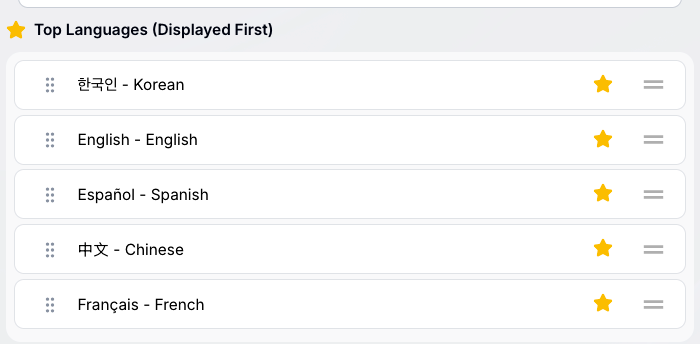
To make it easier for your guests to find their language without needing to scroll or search, you can reorganize the languages in the settings, under “Language Order”.

However you order the languages in the settings, is how they will appear on the guest side of your tablet. Star your most used languages so those are the languages displayed first on the guest side.
We recommend a hardwired connection to sound systems utilizing a 3.5mm TRRS to XLR adapter.
If the situation permits, Bluetooth headsets and Bluetooth speaker/microphone combination devices can also be connected to the tablet to be utilized with the ILA App.
A USB-C adapter to connect to audio inputs can be utilized, but that should be tested to ensure functionality. USB-C audio has been tested with a USB-C headset, but a USB-C microphone and it did not work. Your mileage may vary.
Please remember that no matter which option is used, the ILA App should be restarted any time a new peripheral audio device/input is connected. The ILA App detects the audio devices available when it launches. You can see the audio devices the ILA is using by starting a translation session and tapping on the caret / up-arrow next to the small microphone unmute to the left of the big red microphone button.
See FAQ for details
To see how to access your QR code from the Home Screen, see this quick guide.
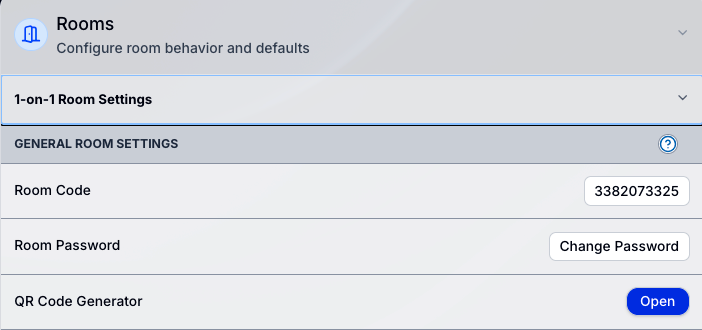
You can also Generate your QR Code from settings. Click the drop-down on Rooms and select which room you need your code for.
Click on the “Open” button next to “QR Code Generator.
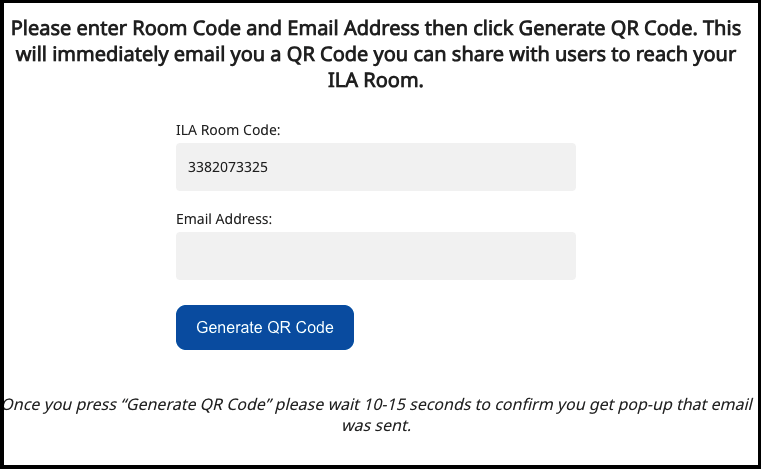
Enter your email address and click “Generate QR Code.” Soon you will be emailed a copy of the QR code.